Wednesday, May 18, 2011

6 Registry Hacks to Make Your PC Faster

Friendly Computers would like to share with you these 6 tips to make your Windows 7 PC faster.

The Windows Registry is a database that holds your operating system's configurations and settings. This includes everything from how long your mouse must hover over a taskbar icon before the preview pops up (in Windows Vista and Windows 7) to performance settings.

Windows 7 (and Vista) have more eye-candy features built into the operating system, but a number of Registry hacks and tweaks can speed up--or, at least, appear to speed up--the performance of your computer. Before we start mucking around with your PC's guts, however, we're going to make sure that you have a reliable backup of your Registry in case something goes sour.

Though editing the Windows Registry is not nearly as scary as it sounds, making an incorrect change can cripple your system. To ensure that this doesn't happen, it's important to take the precaution of backing up part, or all, of the Registry before you proceed.

Back Up the Entire Registry

To back up your Registry, you can use the free Registry-specific backup tool ERUNT (Emergency Recovery Utility NT). ERUNT is simple to use, more reliable than System Restore, and works with Windows XP, Vista, and 7 (even 64-bit versions). ERUNT also saves each restore point independently of the other points, unlike System Restore (in System Restore, all restore points are dependent on other points).

Download ERUNT here.

Back Up Part of the Registry

If you're changing just one part of the Windows Registry, and you know which part that is, you don't have to back up the entire Registry. Instead, you can back up the part you plan on changing using the Registry's export feature.

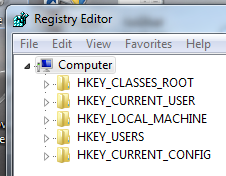
First, go to Start, Run, type regedit, and press Yes. This will open the Registry Editor.

Next, find the part of the Registry you're going to change. Right-click on the Registry key you plan on changing, and click "Export." The Registry Editor will prompt you to save a .reg file to your hard drive.

To undo Registry changes, just find your .reg file and double-click it. The .reg file will reset your Registry values to their existing values (but will not remove values that you've added).

Hack Your Registry

Using the built-in Registry Editor.Using the built-in Registry Editor.Now that you've backed up your Registry--perhaps more than once--it's time to start hacking away. To get to the Windows Registry, go to Start > Run (in Windows Vista/7 you will have to type run into the Start menu search bar and press Enter). Type regedit, click Yes, and the Registry Editor will open.

Hack 1: Speed Up Aero Peek

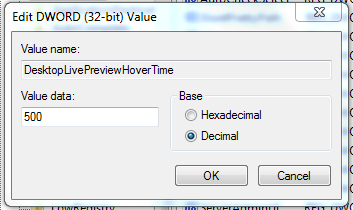
A quick tweak to speed up Aero Peek.A quick tweak to speed up Aero Peek. (Click for larger image.)Windows 7's Aero Peek lets you see the desktop when you move your mouse cursor over to the "show desktop" button at the end of the taskbar. The standard delay time for the Aero Peek preview is 500 milliseconds, or half a second. Here's how to speed it up:

1. Open the Registry Editor and go to HKEY_CURRENT_USER > Software > Microsoft > Windows > CurrentVersion > Explorer > Advanced.

2. Right-click on the right pane and click New > DWORD (32-bit) Value. Name the new DWORD "DesktopLivePreviewHoverTime."

3. Double-click on DesktopLivePreviewHoverTime to open it. Under "Base," click Decimal and then enter the delay time (in milliseconds) in the "Value data" field. Click OK, and your Aero Peek time will be set. You can set the value to higher (a longer delay time) if you're activating it too often by accident, or to lower (a shorter delay time) if half a second is just too long.

4. Log off and log back on for the change to take effect.

Hack 2: Speed Up Taskbar Previews

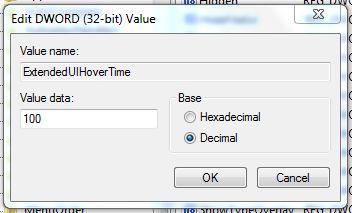
You can speed up (or slow down) taskbar previews here.You can speed up (or slow down) taskbar previews here. (Click for larger image.)When you roll over taskbar icons in Windows Vista and in Windows 7, little previews appear. The standard delay time for these previews is 400 milliseconds, or just under half a second. If this is too slow (or too fast) for you, you can adjust the delay time with an easy Registry hack.

1. Open the Registry Editor and go to HKEY_CURRENT_USER > Software > Microsoft > Windows > CurrentVersion > Explorer > Advanced.

2. Right-click on the right pane and click New > DWORD (32-bit) Value. Name the new DWORD "ExtendedUIHoverTime."

3. Double-click on ExtendedUIHoverTime to open it. Under "Base," click Decimal and then enter in the delay time (in milliseconds) in the "Value data" field. Click OK to set the time (default is 400 milliseconds).

4. Log off and then log back in for the change to take effect.

Hack 3: Speed Up Menus

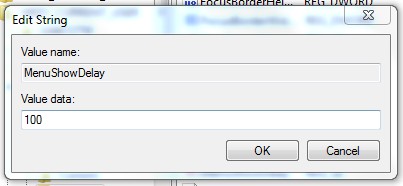
Ditch the menu display delay.Ditch the menu display delay. (Click for larger image.)If you'd like to speed up the menus in Windows Vista or Windows 7, try this easy Registry tweak:

1. Open the Registry Editor and go to HKEY_CURRENT_USER > Control Panel > Desktop.

2. Find MenuShowDelay and double-click to open. Adjust the value in milliseconds (the default is 400 milliseconds, or just under half a second).

3. Log off and then log back on for the change to take effect.

Hack 4: Prevent Reboots

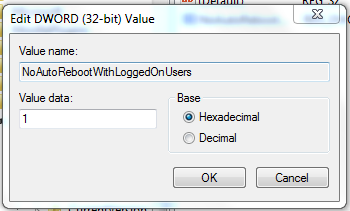
Tired of losing work to Windows Update reboots? Fix that here.Tired of losing work to Windows Update reboots? Fix that here. (Click for larger image.)If you have a habit of leaving your computer on all the time (as do I), you'll occasionally run into the problem of automatic system reboots. These usually happen after Windows downloads some sort of important update, and will usually be preceded by a notification (that gives you about 10 to 15 minutes warning, unless you click it away). If you're not around to see said notification, and you have a lot of windows or important documents open on your computer, these reboots can be a hassle.

So here's how to keep your computer from automatically rebooting with an easy Registry hack. This hack works for Windows XP, Windows Vista, and Windows 7.

1. Open the Registry Editor and go to HKEY_LOCAL_MACHINE > SOFTWARE > Policies > Microsoft > Windows.

2. Right-click in the right pane and select New > Key. This will create a new folder. Name the new folder "WindowsUpdate."

3. Open WindowsUpdate and right-click in the right pane (there will be a value already in the pane called "Default"). Select New > DWORD (32-bit) Value. Name this DWORD "NoAutoRebootWithLoggedOnUsers."

4. Open NoAutoRebootWithLoggedOnUsers and change the Value data to 1. Do not change the Base button to "Decimal"; instead, keep it at "Hexadecimal." Click OK.

5. Exit the Registry Editor and log off and log back in for the settings to take effect. Your system will now never force a reboot without your explicit permission.

Hack 5: Disable Notification Balloons

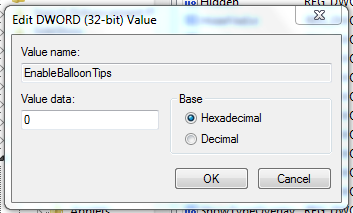
Your Notification Area is constantly flashing with balloon pop-ups. Cut it out.Your notification area is constantly flashing with balloon pop-ups. Cut them out here. (Click for larger image.)If you hate pop-up notification balloons on your Windows Vista or Windows 7 taskbar, you can disable them using a simple Registry hack:

1. Open the Registry Editor and go to HKEY_CURRENT_USER > Software > Microsoft > Windows > CurrentVersion > Explorer > Advanced.

2. Right-click on the right pane and select New > DWORD (32-bit) Value. Name your new DWORD "EnableBalloonTips."

3. Double-click on EnableBalloonTips and set the Value data to 0. It doesn't matter if you have Decimal or Hexadecimal clicked under "Base," because 0 is 0 in both decimal and hexadecimal.

4. Log off and log back on for the change to take effect. You'll no longer see any annoying notification balloons from the taskbar.

Hack 6: Boot XP Faster

Is Windows XP booting too slowly? Here's how to speed up your boot-time with a quick Registry tweak.

1. Open the Registry Editor and go to HKEY_LOCAL_MACHINE > SYSTEM > CurrentControlSet > Control > ContentIndex.

2. In the right pane will be a value called "StartupDelay." Double-click on StartupDelay to open it. Change the "Base" from Hexadecimal to Decimal, and enter 40,000 (the default setting is 480,000).

3. Exit the Registry Editor and restart your computer. Your computer should boot up considerably faster--while this worked for me on my Windows XP laptop, values lower than 40,000 didn't produce a noticeable difference.
Source: http://www.pcworld.com/article/228071/6_registry_hacks_to_make_your_pc_faster.html#tk.hp_fv

Friday, April 15, 2011

Top Automation Tools to Look At

Friendly Computers found this article useful and would like to share it with you.

Here are some Automation tools that you should look at. They are free and can help you different ways.

Data Visualization

It is an easy way to create reportsfrom any data.  You can easily create report layouts and import data from almost any data base system like Oracle, MySQL, PostgreSQL, Firebird, MS SQLServer, IBM DB2, Interbase, SQLite or from external files and create hundreds of documents in whatever format you want (PDF, RTF, XLS, XML). Cost: Free

DataVisualization 400x244 Top Automation Tools to Look At

The application works on a variety of OS formats:  Linux, MS WindowsXP/Vista/2003/7 ,  and Mac OS .  It supports  English, Spanish, and Polish.

[Download Link]

Do It Again

If you’ve ever wanted a task to be repeated on your computer, this program will help you do that. It allows you to make your computer automatically perform a task for you, whenever you want.  For example, if there is something that you do on your computer over and over, and you do it exactly the same way every time (such as backing up your pictures, checking web-based email for new messages, etc.), you can tell Do It Again how to perform that task (by doing it once yourself to create the new task). After that you record a task (or macro) then sit back and watch as your computer automates that task, clicking the mouse and pressing the keyboard by itself.  If it helps, this is also called macro or automation software, as it allows you to record a macro, then play it back to automate the actions of that macro. Cost: Free.

DoItAgain Top Automation Tools to Look At

[Download Link]

Auto Mute

Control the sounds on your PC. How?  This small software utility  will make your PC silent when it’s turning on or is waking up. Solution is very easy! The sound is automatically muted when the computer is turning off or is going to suspend mode. The next system start is absolutely silent even if you forgot to turn the sound off in previous session. After that you can enable sound effects manually, using a shortcut combination. Moreover, you may use this keyboard shortcut to quickly switch the sound on and off.

Why is this program beneficial? Well around your house if you have small children trying to sleep, it won’t wake them up. If you are at work, you can control the sound there too.

AutoMute Top Automation Tools to Look At

[Download Link]

Source: http://www.windows7news.com/2011/04/13/top-automation-tools/

Friday, March 18, 2011

Windows 7 Service Pack 1 Tips

Friendly Computers found this article useful and would like to share it with you.

Service pack 1 (SP1) for Windows 7 has been out for a bit now and perhaps you have installed it. If you are happy with it, I have a tip for you. But then again maybe you are not so happy with it.  In that case, I also have a tip for you.

Free up some space by removing Windows 7 SP1 backup files

When you install Windows 7 SP1, backup files are created to be used in case you have problems with the update and want to get rid of it. These files may take up as much as several GB of space and eventually you may want to delete them. It may not make much difference if you have a terabyte drive but these days many operating system volumes are fairly small. If you have been using SP1 for a while and everything seems to be working properly, here is how to remove the backup files.

Note that once these files are removed, you won’t be able to uninstall SP1. As a matter of good practice, make an image of your system before installing service packs so that you can have an alternate way to return to your original setup.

Use the system tool Disk Cleanup to remove backups

One way to remove the backup files is to use the Windows Disk Cleanup accessory. There are various ways to open Disk Cleanup in Windows 7 but an easy path is to enter “clean” (without quotes) in the Start menu Search bar and select “Disk Cleanup” from the list. You’ll have to go through several steps (see this link for pictures).

  1. Open Disk Cleanup
  2. Click the Button “Clean up system files”
  3. If necessary, select the drive or volume where your operating system is located (normally C:)
  4. In the dialog box, click the tab “Disk Cleanup”
  5. In the list that opens, find “Service pack backup files’ and put a check by it
  6. Click “OK”
  7. Click “Delete files”

Use the command line to remove the backups

If you are a command-line aficionado, there is a quicker way to delete the backup files. Open a command prompt with administrator privileges and enter

   DISM /online /cleanup-Image /spsuperseded

How to uninstall Windows 7 service pack 1 from the Control Panel

If SP1 makes you unhappy for one reason or the other, you can uninstall it (assuming you didn’t apply the tip above first).

  1. Go to Control Panel-Programs-Programs and Features. The easy way to get there is to enter “uninstall” in theStart- Search bar and choose ”Uninstall a program” from the Control Panel list
  2. Click “View installed updates”
  3. Click "Service Pack for Microsoft Windows (KB 976932)"
  4. Click “Uninstall”

How to uninstall Windows 7 SP1 from the command line

Open a command prompt with administrator privileges and enter

   wusa /uninstall /kb:976932

Don’t you just love how simple the command line makes things?

Source: http://www.techsupportalert.com/content/windows-7-service-pack-1-tips.htm

Monday, March 7, 2011

Five Tips to Clean Up and Organize Your PC

Friendly Computers found this article useful and would like to share it with you.

Tomorrow is National Organize Your Home Office Day for 2011. While many will be focused on finally filing that growing pile of documents and receipts on their desk, actually implementing a filing system that has some logic behind it, or tweaking the feng shui of the physical office environment in some way, it is just as important to take some time out to clean up your digital office--the PC.

The PC is the centerpiece of office productivity. It is the heart and soul of the office, and when it is in cluttered disarray everything else suffers. With some help from iolo--makers of System Mechanic, here are five tips to help you clean and organize your PC.

The Disk Cleanup utility in Windows can identify and remove files you no longer need.1. Uninstall. Uninstall programs that you no longer need or use. They take up space on your hard drive, may be loading in memory and wasting system resources, and represent a possible security risk since you are unlikely to patch or update software you aren't even using. Some software applications include an uninstall option in the Start Menu folder. The best place to start, though, is the Programs and Features option in the Windows Control Panel.

2. Delete. Delete unused, old or duplicate files, e-mails, e-mail addresses, bookmarks and favorites. The average American adult has more than 1,800 digital files, according to the Consumer Electronics Association. That number goes up dramatically, once you factor in all the duplicate, unused or old files that unnecessarily take up your hard drive's space and make searching for the files you need more time-consuming, and grinding on your processor and hard drive. The Disk Cleanup utility in Windows is one good way to identify and remove unnecessary bits from your hard drive.

3. Clean. Once you've uninstalled unused programs, make sure to clean out your registry as well. Invalid or out-of-date registry settings can slow down your computer's boot time and cause weird hesitations and freezes during its operation. Messing with the Windows registry can have catastrophic consequences if done wrong and identifying and removing unnecessary registry entries is easier said than done. This is one area where using a third-party tool like System Mechanic makes sense.

4. Organize. Organize your files. Once unneeded programs are uninstalled, unused or duplicate files deleted and registry cleaned out, make sure the rest of your files are well-organized. Use a logical file naming system and put files into folders that make sense and are easy to remember and access. You can group files chronologically, or by customer, or by project--it is up to you to determine a system that makes the most sense for you and keeping your digital office functional and tidy.

5. Personalize. Personalize your computer. More personalizing helps you remember things and be better organized. Moreover, with a computer that's configured to suit your needs, you are more likely to remain better organized following Organize Your Home Office Day and throughout the year. Explore things and do not hesitate to right click on different tools. The Control Panel is the best place to begin.

Follow these five tips to declutter and organize your PC. It can be tough, tedious work depending on the state of your PC, but the effort will be worth it when you are able to work more efficiently and more effectively.

Source: http://www.pcworld.com/businesscenter/article/221477/five_tips_to_clean_up_and_organize_your_pc.html#tk.hp_new

Wednesday, February 9, 2011

How to improve remote desktop protocol performance

Friendly Computers found this article useful and would like to share it with you.

Improve your experience with Remote Desktop Protocol when accessing your Windows Terminal Services or Windows Desktop. This will help correct typing delays, for example.

Many people use Remote Desktop to access Windows Desktops every day. Many of us have been doing this for too long to remember. Nevertheless, most do not bother to look at the settings in the Remote Desktop Client to customize and improve the performance when working remotely.

This applies especially to connections made over the Internet, a VPN connection, or to a busy Terminal Server. Also, connections to Terminal Services from older WYSE terminals will be greatly improved.

Have you ever experienced severe typing delays? Read on…

1. Open the Remote Desktop Client. On Windows 7, simply hit the Windows key, start typing remote desktop, and hit enter. You can also find it under Programs > Accessories on most recent Windows versions.

2. In the “Display” tab (you’ll have to select “Options…”), crank the Color Depth down to 15 (aka “thousands”) or 16-bit depending on your preference. The lower the color settings the faster the connection.

3. In the “Local Resources” tab, un-check Printers and set Audio to “Do not play”. If you require the ability to print to your locally attached printer or need to hear audio, ignore my suggestions accordingly. Note that un-checking Printers is also especially useful to reduce the overhead involved with making the destination Terminal Server attempt to install your printers (and sometimes cause the spooler service to crash). The less additional “channels” (resources) that you connect the faster the connection.

4. In the “Experience” tab, un-check all options except Bitmap caching. All other options consume extra bandwidth, and offer little benefit for most users of Remote Desktop. This is possibly the most important change to make, as items such as “Themes” can quadruple the bandwidth consumption under the right circumstances.

5. Back in the “General” tab, enter your destination computername and select connect as usual. Enjoy the faster connection!

Note that, as mentioned, these settings also apply to WYSE terminals, but the means of getting to them is slightly different.

Of course, you can also do the same with your Mac if using the Microsoft “Remote Desktop Connection for Mac” Client. Just look under Preferences…

Source: http://www.tech-recipes.com/rx/11235/how-to-improve-remote-desktop-protocol-performance/